
Organization
Members, roles, projects, and billing
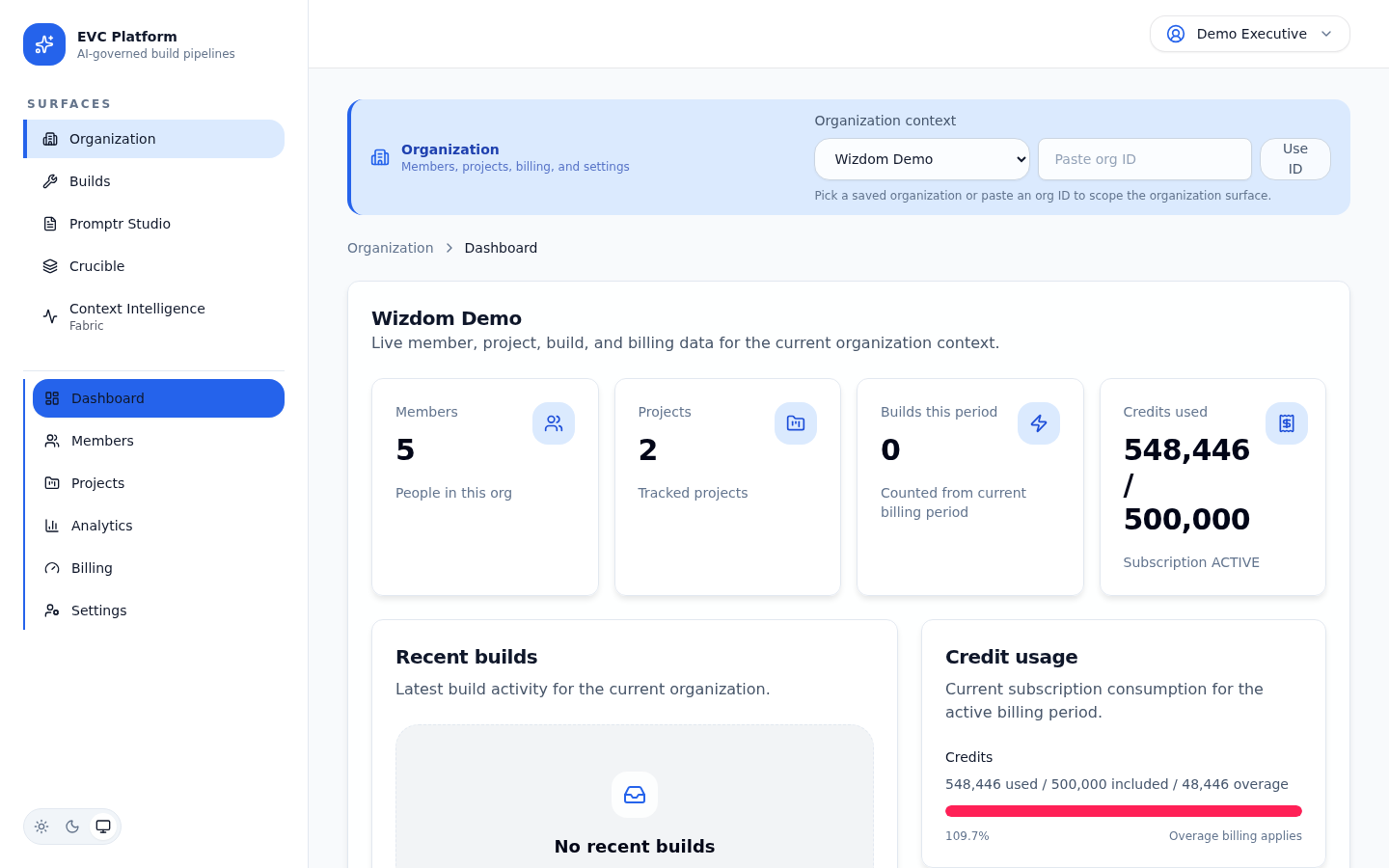
Organizations are the top-level container on the EVC Platform. They hold projects, members, builds, billing context, and policy configuration. This guide covers everything you need to manage your organization effectively.
Members and roles
Every user in an organization has a role that determines their permissions. Roles are assigned at invitation time and can be changed by organization administrators.
ORG_OWNER
Full control over the organization including billing, member management, deletion, and all project-level actions. Each organization has exactly one owner.
ORG_ADMIN
Manages members, projects, and settings. Cannot delete the organization or transfer ownership. Ideal for team leads who manage day-to-day operations.
PROJECT_LEAD
Full control within assigned projects including build configuration, prompt management, and Crucible session creation. Cannot manage organization-level settings or members.
MEMBER
Can trigger builds, use Promptr Studio, participate in Crucible sessions, and view project data. Cannot change project settings or manage other members.
VIEWER
Read-only access to builds, artifacts, evidence, and analytics. Cannot trigger builds or modify any configuration. Suitable for stakeholders and auditors.
Inviting members
- Navigate to Settings > Members.
- Click Invite Member and enter the email address.
- Select a role from the dropdown.
- Click Send Invitation. The invitee receives an email with a join link.
[Screenshot: Member invitation modal with email input and role selector — pending capture]
Projects
Projects organize builds, prompts, Crucible sessions, and evidence under a shared context. Each project has its own build history, configuration defaults, and access controls.
Creating a project
- From the organization dashboard, click New Project.
- Enter a name and optional description.
- Configure defaults: build mode, LLM provider, and model.
- Click Create. The project appears in the sidebar immediately.
[Screenshot: New project creation form with name, description, and default configuration — pending capture]
Project settings
Project settings include default build configuration, budget allocation, and member access. Project leads and organization admins can modify these settings at any time.
[Screenshot: Project settings page showing default mode, provider, and budget allocation — pending capture]
Billing and subscription tiers
Billing is managed at the organization level. Each subscription tier includes a set amount of build credits, and usage beyond the included amount is billed as overage.
Subscription tiers
Tiers are designed around team size and governance depth. Higher tiers include more build credits, additional team seats, and access to advanced features like Crucible deliberation and CIF routing policies.
[Screenshot: Subscription tier comparison showing features, credits, and pricing per tier — pending capture]
Usage and invoices
The billing dashboard shows current-period usage, remaining credits, and historical invoices. Usage is broken down by project so you can identify where credits are being consumed.
[Screenshot: Billing dashboard showing current usage, remaining credits, and invoice history — pending capture]
Payment methods
Add and manage payment methods from Settings > Billing. The platform supports credit card payments. Additional payment methods are planned for future releases.
[Screenshot: Payment method management showing saved card and add new card option — pending capture]
Settings
Organization settings control the workspace name, slug, default configurations, notification preferences, and integrations.
General settings
Update the organization name, slug, and description. The slug appears in URLs and API paths, so changing it may affect bookmarks and integrations.
[Screenshot: General settings form with organization name, slug, and description fields — pending capture]
Provider configuration
Configure LLM provider API keys and default preferences from the provider settings page. Each provider requires its own API key. Keys are stored encrypted and never exposed in the UI after initial entry.
[Screenshot: Provider configuration showing connected providers with key status indicators — pending capture]