
Promptr Studio
Prompt engineering with version control and evaluation
Promptr Studio is the prompt management surface of the EVC Platform. Author prompts with a rich editor, manage versions with tagging and promotion, run evaluations against test suites, and compare performance across providers with A/B experiments.
Prompt authoring and the editor
The prompt editor provides a structured environment for writing, formatting, and annotating prompts. Prompts are stored as versioned documents within a project context.
Each prompt has a name, description, and body. The body supports multi-section layouts so you can separate system instructions, context blocks, and task descriptions. Syntax highlighting helps distinguish variable placeholders from static content.
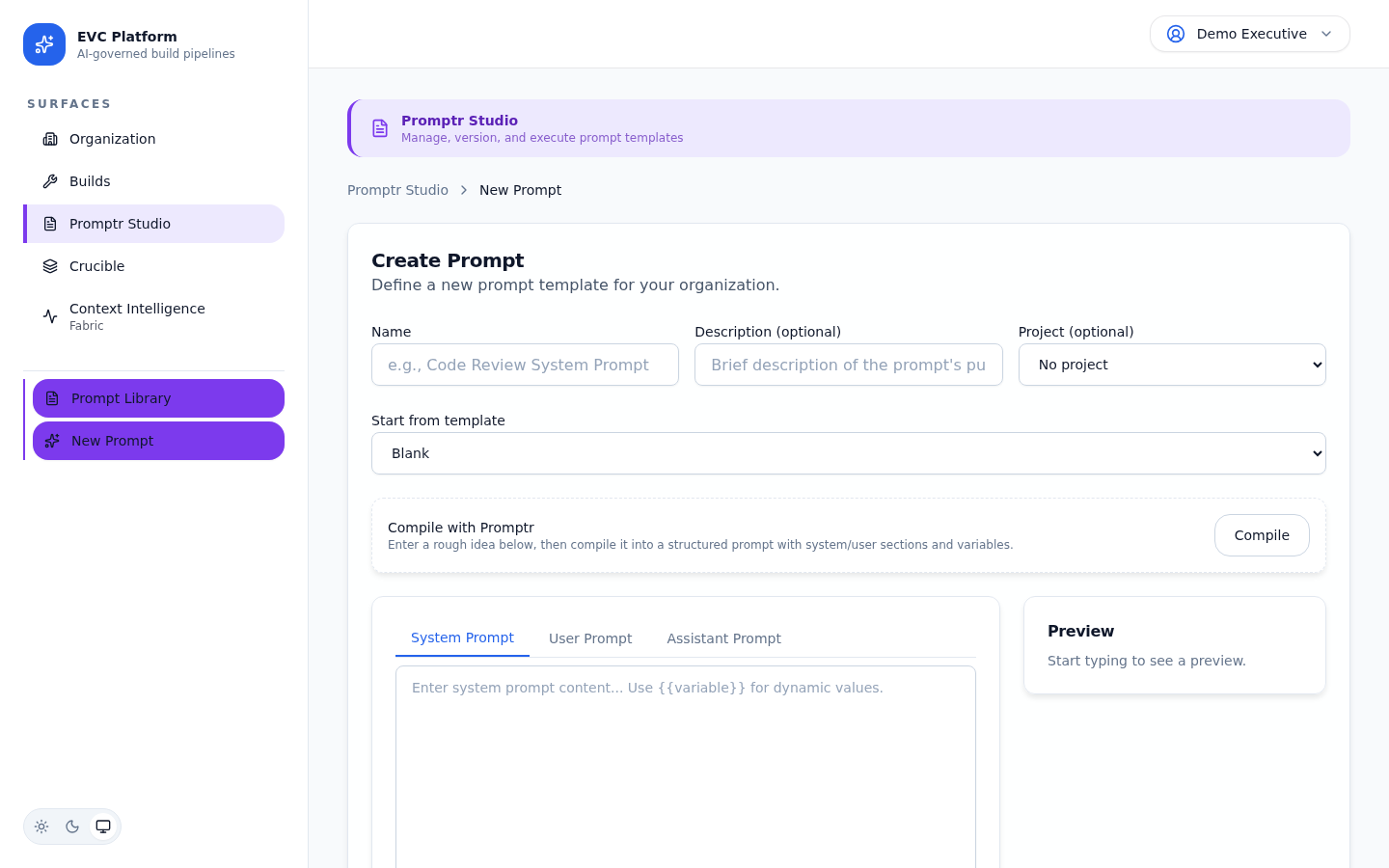
Prompts belong to a project and can be referenced by builds. When a build triggers with a saved prompt, the exact version used is recorded in the evidence bundle for reproducibility.
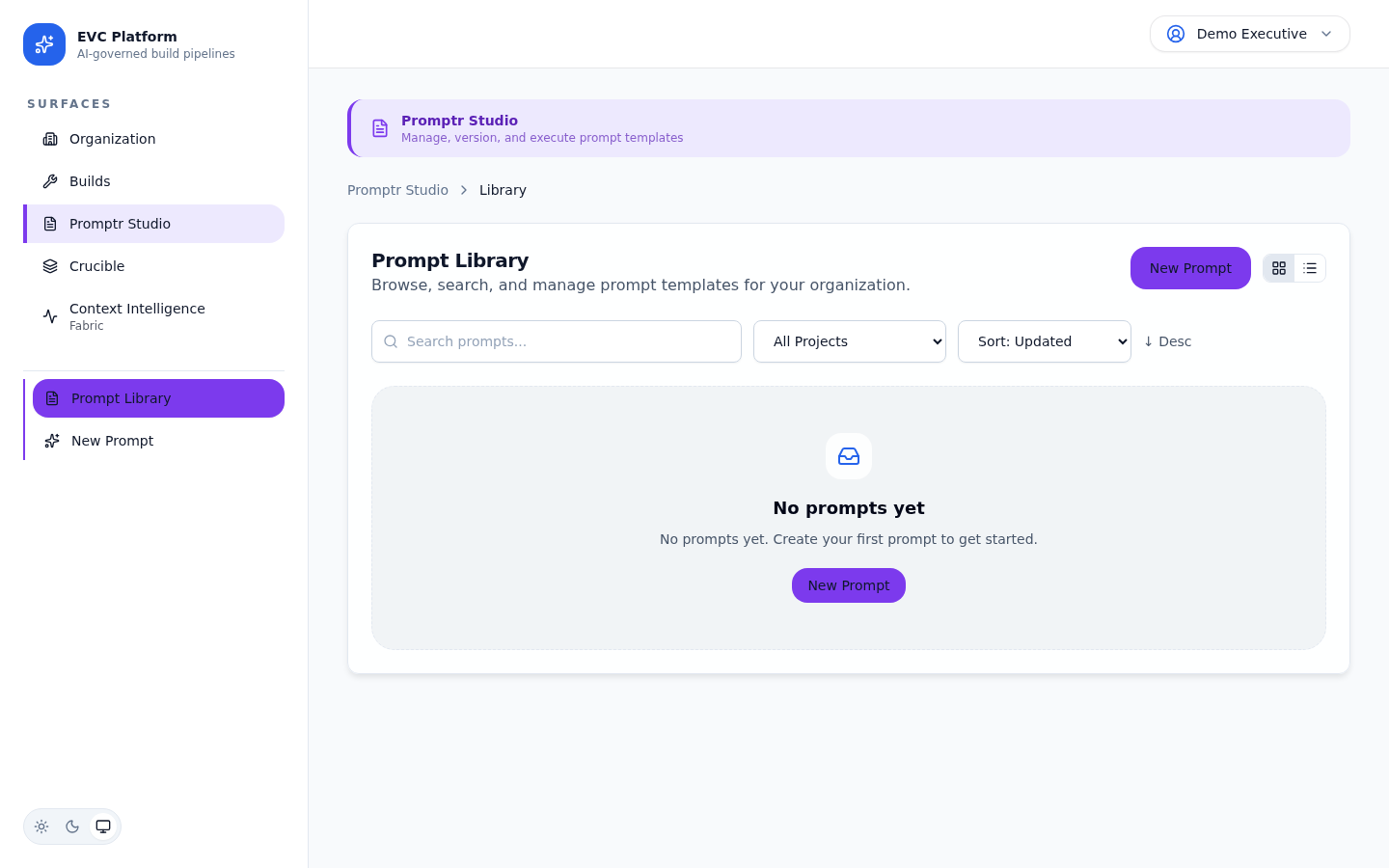
Version management
Every edit creates a new version. Versions can be tagged, compared, and promoted through a lifecycle that moves from draft to production.
Creating versions
When you save changes to a prompt, a new version is created automatically. Each version is immutable once saved, giving you a complete history of every change.
Tagging and promotion
Tag versions with semantic labels (e.g., v1.0, release-candidate) for easy reference. Promote a version to production status to make it the default used by builds in the project.
[Screenshot: Version promotion dialog with tag input and production toggle — pending capture]
Prompt variables and parameters
Variables let you create reusable prompt templates with dynamic values that are resolved at execution time. Parameters define the schema and defaults for those variables.
Define variables using double-brace syntax: {{variable_name}}. Each variable can have a type (string, number, boolean, enum), a default value, and a description that appears in the execution UI.
[Screenshot: Variable configuration panel showing type, default, and description fields — pending capture]
When a build or playground execution references a prompt with variables, the UI displays a form for filling in values. If defaults are configured, they pre-populate the form.
[Screenshot: Execution form with pre-populated variable inputs from prompt parameters — pending capture]
Execution and the playground
The playground lets you test prompts interactively without triggering a full build. Run a prompt against any supported provider and model, review the response, and iterate quickly.
- Open a prompt and click Playground.
- Fill in variable values if the prompt uses parameters.
- Select a provider and model from the dropdown.
- Click Run to execute the prompt. The response streams in real time.
- Review token usage, latency, and the full response in the output panel.
[Screenshot: Playground with prompt on the left and streaming response on the right — pending capture]
Evaluation suites and test cases
Evaluation suites let you define test cases that automatically verify prompt quality across versions and providers. Each test case specifies inputs, expected behaviors, and scoring criteria.
Creating a suite
Navigate to the Evaluations tab of a prompt and click New Suite. Give it a name and description, then add test cases with input variables and expected output criteria.
[Screenshot: Evaluation suite editor with test case list and scoring criteria — pending capture]
Running evaluations
Run a suite against any prompt version and provider combination. The platform executes each test case, applies scoring criteria, and produces an aggregate quality report with per-case pass/fail results.
[Screenshot: Evaluation results showing pass/fail per test case with quality scores — pending capture]
A/B experiments
A/B experiments compare two prompt versions or provider configurations head to head. The platform runs both variants against the same inputs and produces a comparative analysis.
- Navigate to the Experiments tab and click New Experiment.
- Select the two variants to compare: different prompt versions, different models, or different providers.
- Choose the evaluation suite to use as the comparison basis.
- Click Run Experiment. Both variants execute against every test case.
- Review the results table showing quality, cost, and latency for each variant.
[Screenshot: A/B experiment results comparing two variants with quality and cost metrics — pending capture]
Execution tracing and analytics
Every prompt execution, whether from the playground, an evaluation, or a build, is recorded with full tracing data. Analytics surfaces help you understand usage patterns, cost trends, and quality over time.
The execution history shows every run with provider, model, token counts, latency, and cost. Filter by date range, version, or provider to identify trends.
[Screenshot: Execution history table with filters for version, provider, and date range — pending capture]
The analytics dashboard aggregates execution data into charts showing cost per execution over time, average latency by provider, and quality score trends across evaluation runs.
[Screenshot: Promptr analytics dashboard with cost, latency, and quality trend charts — pending capture]